I’ve run into the issue documented in this thread where the text just falls off to the right hand side of a text box and you cannot see it, as in this screen shot where there is more text off to the right.
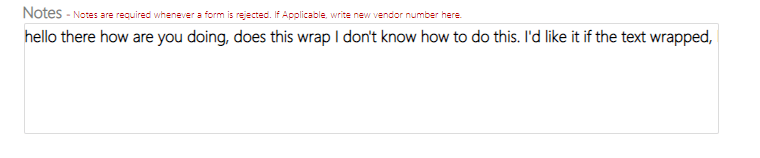
The answer was found on the bottom of page 2 of the thread and is as follows…
After working with a MS Engineer (shout out to Dan Li!), I got it working! Here are my steps to fix this bug.
Prep (only needs to be done once in the domain):
- In NOTEPAD, create a new text file and name it textarea.css. Remove the .TXT if it is there.
- Open the CSS file and add the following exactly as follows: textarea { white-space: pre-wrap !important; word-wrap: break-word !important; }
- Save the file.
- Go to https://xxxx.sharepoint.com/Style%20Library, create a folder named CSS
- Upload the textarea.css file into the new folder
Settings every time a form is created using a textbox in a new site collection.
- “Site settings” > “Site Collection Administration” > “Site collection features”
- “SharePoint Server Publishing Infrastructure”, click Activate. Will be slow!
- “Site Settings” > “Site Actions” > “Manage site features”
- “SharePoint Server Publishing”, click Activate.
- “Site Settings” > “Look and Feel” > “Master Page”
- Expand Alternate CSS URL if collapsed
- Select: Specify a CSS file to be used by this site and all sites that inherit from it: (in my case it was set to the first choice of “Inherit Alternate CSS URL from parent of this site”)
- Enter the following into the All Channels box: /Style Library/CSS/textarea.css
- Check the box for: Reset all subsites to inherit this alternate CSS URL
- Click OK to save it.
That’s it!
Kevin
Credit this solution to Kevin
 Learning SharePoint
By changing to RichTextbox will also work
LikeLike