I’d like to be able to search a specific view in a SharePoint document library from within a Modern Page. The way I suggested to do this would be to click the “See All” link that displays from within a Document Library web part…
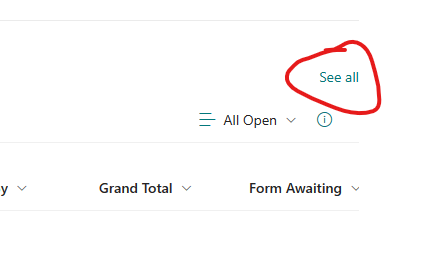
This would work quite well, but they wanted the search to be from a different page. So I added PNP Modern Search controls as described here https://microsoft-search.github.io/pnp-modern-search/ to a modern page.
Once you add those modern search web parts to your tenant, you can add them to your modern page. In this example, I added a “one-third left” section. Add the PNP Search box on the left and the PNP Search Results on the right.
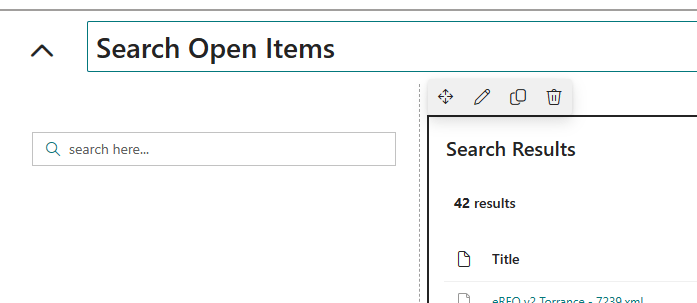
I did not need to make any customizations to the search box, but I did need to make some changes to the search results web part. On the third page of the Search Results web part properties, you’ll need to hook the results web part up to the search box web part. The instructions on the PNP page at https://microsoft-search.github.io/pnp-modern-search/usage/search-results/connections/ discuss this. Also, on the first page, you should be selecting “SharePoint Search” instead of “Microsoft Search.”
Searching a Specific View
In order to just search a single specific view of a document library, we’ll need to set up the web part to mimic the selection criteria of that view. This is the tricky part. By default, as you’ve set it up thus far, any search will search the entire site and return results from all lists, pages, and libraries. We want to narrow that down. The search results web part gives you some options to do this.
Refinement Filters
We can refine the search results with refinement filters. In this case, I’m going to confine my search to a specific document library by using the ListID managed property.
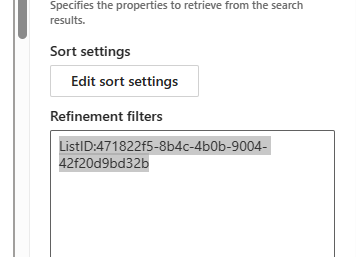
ListID:471822f5-8b4c-4b0b-9004-42f20d9bd32b. Note that refinement filters must be written in FQL, Fast Query Language https://learn.microsoft.com/en-us/sharepoint/dev/general-development/fast-query-language-fql-syntax-reference
Query Template
We can specify the query here. In this case I’m going to search on this list’s “Form Status” column. Query Template must be in KQL, or Keyword Query Language https://learn.microsoft.com/en-us/sharepoint/dev/general-development/keyword-query-language-kql-syntax-reference
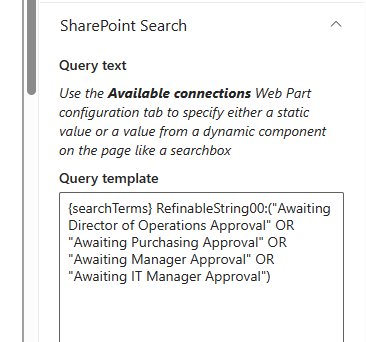
There are a couple of odd things going on here.
- {searchTerms} is the first thing there. {searchTerms} is just the words you’re searchign on.
- I’m searching on the managed property “RefinableString00.” “RefinableString00” is a managed property in the site’s search schema. I have mapped RefinableString00 to a crawled property for my “Form Status” column. Can the managed property be something other than RefinableString00? Not really. Microsoft gives you many RefinableString## properties you can choose to use, but you cannot customize your own managed property. To make the mapping, do the following.
- Go to your site settings
- click on “Search Schema.”
- click on “Crawled Properties”
- search on the column you’d like to map, in this case the “Form Status” column is the ows_Form_x0020_Status crawled property. This might be difficult to find, so I search on just the word “form” to get there.
- click on crawled property you wish to map and do “Add a Mapping.” Add a mapping to one of the RefinableString## properties. you should end up with this screen shot below. click OK.


Re-index your document library (library settings >> Advanced >> Re-index) and in a little while you’ll be able to search do the query on RefinableString00, or whatever managed property you chose.
The following blog posts about SharePoint Search were very helpful.
 Learning SharePoint