The problem is when someone searches from a certain SharePoint hub site’s home page, all of the hub sites are searched and, in our case, thousands of results are returned. The people using the site want to restrict the results to just a few sites. Here’s one way to do that in SharePoint Modern Pages.
First thing is to install PNP Modern Search in your tenant. It’s a set of four web parts (in this example, we’ll only use one), that are maintained by a group of developers. Some of them work for Microsoft, and some don’t. Here is where to get it https://microsoft-search.github.io/pnp-modern-search/ as of this date 1/11/2023, it’s at version 4.8.0. One nice thing about this install is you don’t have to build it yourself; the people maintaining this package give you an sppkg file for the installation.
The approach will be to redirect all searches from a certain site to a custom page with these web parts on it. This custom page will be configured to restrict the results to only certain sites.
Create a new modern custom page in your site. I’ve named mine Custom Search Results. Add the PnP – Search Results web part to your page. If you have installed the PNP web parts, you should be able to click the add button, and search on the literal word “search” to find them.

Edit the web part and accept all the default values until you get to page 3 of 4 of the web part properties. Here, you’ll want to set “Connect to source” to “Page environment,” “Page environment’s properties” to “Search” and “Search’s properties” to “Search query.” Setting these values will configure the web part to accept the search query as it is typed into the OOTB search dialog that appears on the top of all modern SharePoint pages. Note that’s it’s also possible to use a PnP – search box web part to accept the query, but we’re not doing that here.

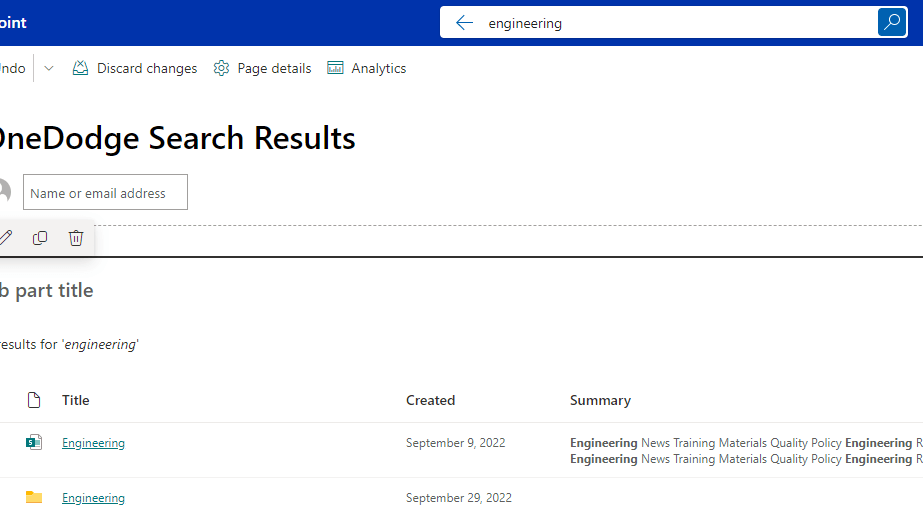
At this point, with the page in edit mode and without having saved the page yet, you should be able perform a simple query and get some results
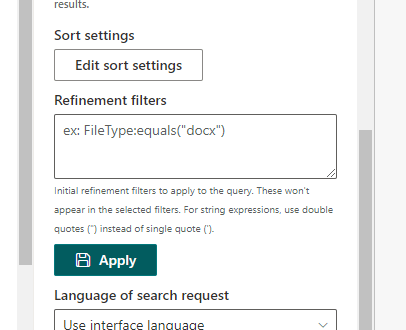
Now comes the part that this blog post is all about. On page 1 of the web part properties, look for the “Refinement filters” dialog. This is where you can filter down your search results using FQL https://learn.microsoft.com/en-us/sharepoint/dev/general-development/fast-query-language-fql-syntax-reference
In this instance, the request is to restrict results to three different sites, here is the FQL formula to do that.
or(SPSiteUrl:equals("https://yoursitename.sharepoint.com/sites/site1"),SPSiteUrl:equals("https://yoursitename.sharepoint.com/sites/site2"),SPSiteUrl:equals("https://yoursitename.sharepoint.com/sites/site3"))Notice the “or” in the front, with each argument separated by commas. FQL words like “or” and “equals” are not case-sensitive, but Microsoft recommends you use all lower case at this time. I use a code editor to write out the FQL, then copy and paste it into the Refinement filters dialog. Click the “Apply” button, and you should see the results of your filters. Note that this isn’t the only way of filtering; there is also a PnP – Search Filters web part, but I had trouble getting that one to work, and this is just as effective. Please post in the comments if you’ve figured out how to get the PnP – Search Filters web part to work for this problem.
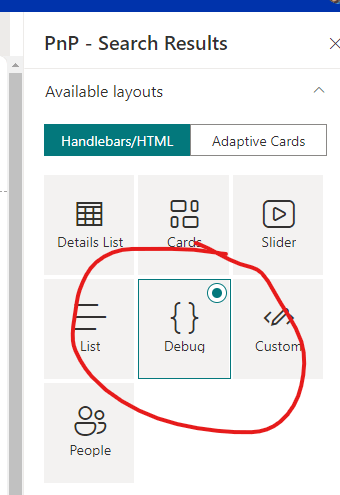
How did I know about SPSiteUrl property? On page 2 of the Search Results Web Part Properties, there is a “Debug” view. Click it with your search results active, and you’ll see all the properties that are returned that can be used for filtering.
Finally, once you get the search results working like you want, you can substitute your new Custom Search Results page for the default page. See this blog post on how to do that https://techcommunity.microsoft.com/t5/microsoft-search-blog/creating-custom-search-results-pages-in-sharepoint-online/ba-p/1141515?WT.mc_id=m365-15744-cxa you can do this at either the site collection level or the site level. In my case the three sites were all different site collections tied to the same hub, so I had to do it to all three of them.
 Learning SharePoint